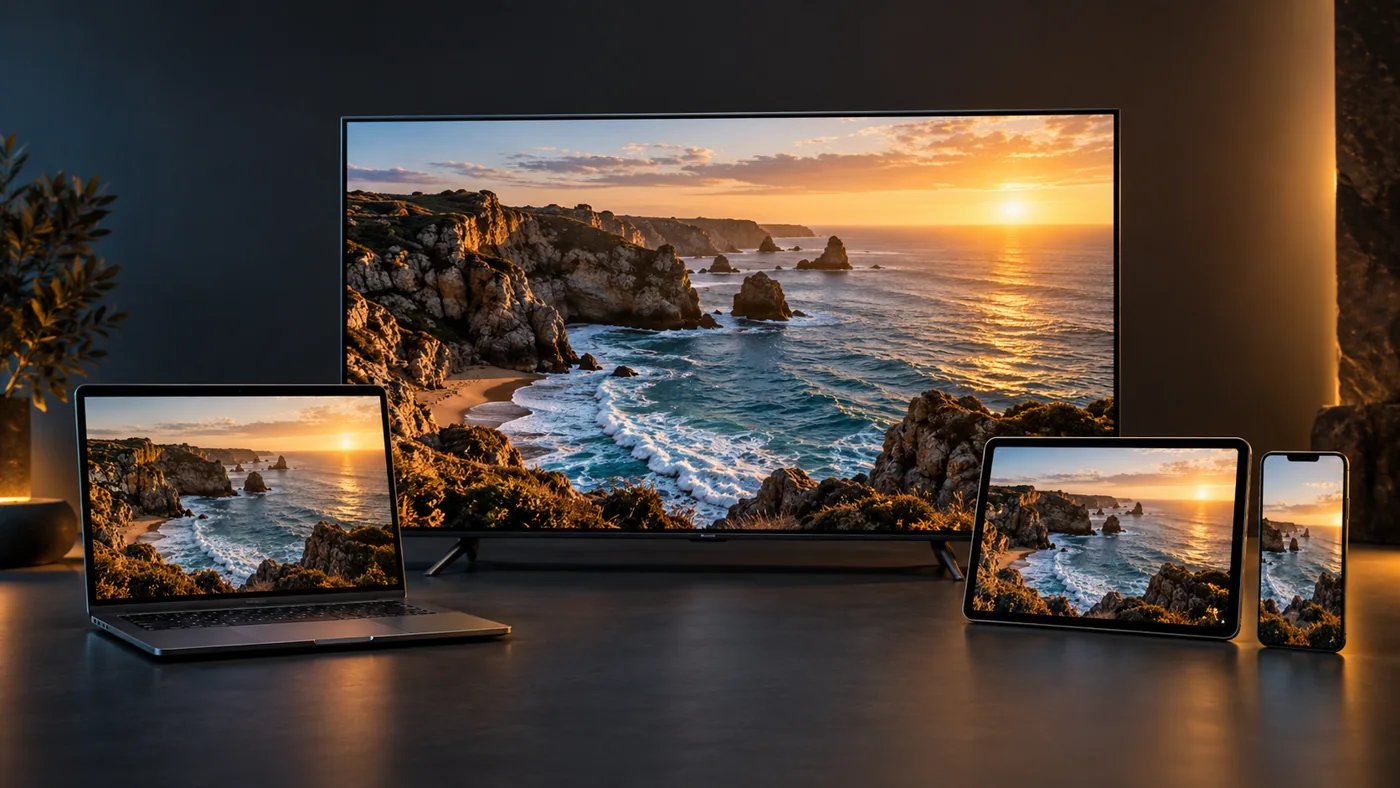
Choose for your device first. Test the playlist, TV guide and remote before paying for extra app features.
The right IPTV player turns an M3U playlist, Xtream Codes login and an Electronic Programme Guide into one comfortable surface. This guide walks through every step of that setup.
Start with your screen
The best IPTV app is the one that feels natural on the device you use every day. A living-room TV needs clear text and predictable remote controls. A phone needs comfortable touch navigation. A desktop player is useful for checking a stream before you spend time troubleshooting the television.
Before installing anything, confirm your TV model, operating system and the playlist format supplied with your service. An M3U playlist is a list of stream addresses; Xtream Codes setup usually asks for a server address, username and password. Our IPTV device guide and M3U setup walkthrough explain where to start.
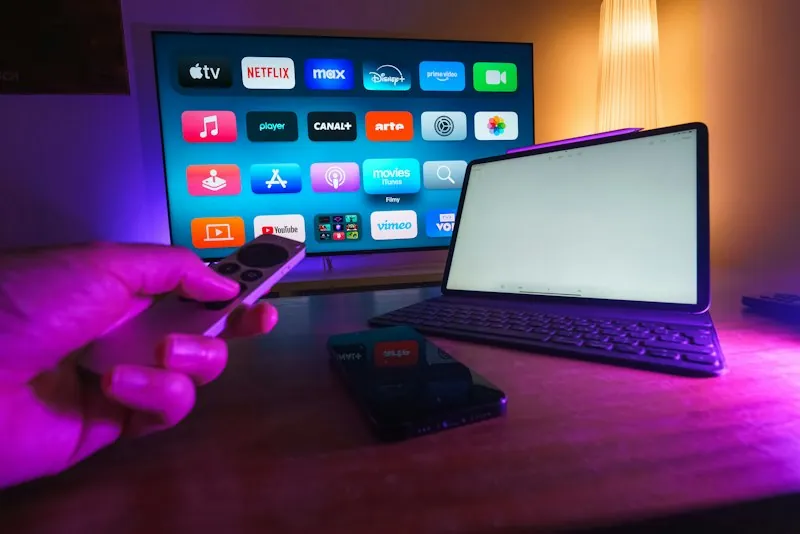
Every operating system has different blockers and different strengths. An Android TV box or Google TV device usually has the widest choice of IPTV players because it borrows from the Android app ecosystem. A Samsung smart TV runs Tizen and a LG TV runs webOS, and both require you to check their own app stores rather than assuming Android TV apps will install. Fire TV and Firestick devices share a lot with Android TV but still vary in remote layout and app availability, while Roku uses its own store with a different selection.
Finding your operating system takes forty seconds. On most televisions, open the Settings screen and look for “About,” “System,” “Device Preferences” or “General” — the wording varies by brand and model. That exact label is what you type into a search engine or app-store search to find the right version of a player. Two televisions from the same brand can sit on different operating systems if one is older, so trust the on-screen name rather than memory.
Samsung = Tizen · LG = webOS · Google TV and Chromecast = Android TV · Fire TV = Fire OS · Apple TV 4K = tvOS. If none of those match, note the exact model and search for its app store.
If you are comparing devices, our IPTV apps overview lists the popular players by platform. And if you already own several screens, decide where the majority of your viewing happens. Buying a premium player for every device is rarely necessary — most households are well served by one primary app on the living-room television and a free option everywhere else.
Ask a streamer: “Which device do I watch most?” Choose the app for that device first. Extra apps are cheap to add once the main setup feels stable.
Three routes to a better player
There is no single best IPTV app for everyone, but there are three reliable routes depending on your screen and habits. All three should be installed from the official store or the developer's website, never from a downloaded APK sent to you in a chat.
Quick verdict
Android TV
TiviMate is designed for remote-controlled Android TV devices. Its developer lists M3U, Xtream Codes, an EPG and multiple playlists. Some features require a paid upgrade.
Official TiviMate listing ↗Smart TV
Check your Samsung or LG app store on the actual television. App availability can vary by model and region; do not assume that an Android TV app will install on every Smart TV.
Find your Smart TV setup →Computer
A desktop player can help isolate a device problem. Try your authorized network stream on your computer, then compare playback on the TV using the same connection.
Visit the official VLC project ↗Beyond those three routes, a second tier of players remains popular. IPTV Smarters is widely bundled with services and offers a cleaner layout for beginners, with M3U and Xtream Codes both supported. Kodi is a full media centre rather than a dedicated IPTV player: the free player Kodi can be extended with IPTV addons, which makes it powerful but also easier to misconfigure. Our Kodi for IPTV guide shows a safe path if you want to try it. For Apple households, the Apple TV setup and iPhone apps follow the same logic: install from the official App Store and add your account details exactly as supplied.
It is worth remembering what an app cannot do. An IPTV player is a viewer — it plays the streams that an active subscription makes available. No player changes the size of your channel list, improves a low-bitrate source into real HD, or grants channels you are not entitled to. That is why our comparison of IPTV versus cable and the subscription plans treat the playlist and the app as two separate decisions: choose a service for its channels and support, then choose an app for how comfortably you watch them.
A useful habit is to test two players side by side on the same device during your free trial. Keep the one whose remote navigation and channel switching feel fastest, then delete the other. Comparing apps against the same playlist reveals which player handles your EPG and channel groups better — a distinction you cannot see until you test it live.
Fast and focused
Great for one playlist, a handful of favourites and viewers who want channel surfing without menus. Upgrade later if you outgrow it.
Smarter defaults
Multiple playlists, a richer EPG, recordings and remote-driven layouts. Worth the upgrade once your routine is built and stable.
Build your playlist, then your routine
Install the app from its official store or developer website. Add the account details exactly as supplied, including the complete server address. Avoid sharing screenshots of your playlist URL: it may contain your username and password.
Most subscription services today hand you one of two formats. An M3U playlist is a file or URL that lists channels and their stream addresses, while an Xtream Codes setup is a single server address plus a username and password that the app translates into your channel list. Each format changes where you paste the details, so check which one your provider sent before tapping through the setup screens.
- Add one playlist. Start small so duplicate groups do not clutter the interface.
- Set up the TV guide. Use the correct EPG source and check the time zone against a programme you recognize.
- Create favourites. Put the channels you actually watch at the top.
- Test everyday controls. Try channel changes, subtitles, audio tracks and returning to the home screen.
- Set recordings or catch-up. Some players and services support these; confirm availability before relying on them.
The Electronic Programme Guide does more than show schedules. A well-configured EPG makes it easy to spot the evening events you care about, which is why our EPG setup guide walks through source selection and time-zone validation in detail. When schedules appear blank or shifted, the usual cause is an outdated EPG URL or the wrong time-zone setting in the player — fix those two things before reinstalling anything.
Channel groups deserve attention while you are here. Most services deliver their lineup in categories — news, sport, movies, documentaries, children’s and regional blocks. Spend one evening renaming or reorganising groups to match how you actually watch, and hide empty groups so channels you will never open do not sit between you and a favourite. This is the single most underrated tidy-up in an IPTV setup, and it costs nothing.
Finally, keep the playlist URL and account details written down somewhere private. When an app update wipes the configuration, a five-second re-entry beats retracing every menu. Our channel list and encoder notes explain why stream addresses change and how providers keep them updated, so you know what to expect when a favourite channel moves.
Use our Xtream Codes guide for account setup and our EPG setup guide when schedules are missing. If you already have an Android TV device, the TiviMate walkthrough provides a focused next step. For an all-round media device, the MAG box configuration or Android device setup page may be closer to your hardware.
A playlist URL is a credential, not a link to share casually. If you ever suspect it leaked, ask your provider to reset your account details.
When the picture will not play
A player and a subscription do different jobs. Installing or buying an IPTV player does not automatically provide channels. First confirm that your playlist is active and that your account permits the number of simultaneous connections you are using.
If one channel fails, compare another channel before reinstalling the app. If every channel fails, check the account details, internet connection and service status. For repeated pauses, work through the IPTV buffering guide. Changing multiple settings at once makes the cause harder to identify.
Back to basics: Wi-Fi placement matters more than most people expect. A television tucked into a media cabinet can lose signal steps that a phone on the counter never sees. If playback keeps stalling on the TV but works elsewhere, move the router or connect the device with Ethernet — our connection troubleshooting guide covers this step by step. Picture-freezing and dropped frames often trace back to the network rather than the app, which is why our freezing guide and not-working checklist are useful second stops.
Work in that same ordered way every time, because guessing burns an evening:
Start with the channel itself — does a second channel play? Then the account — is the playlist active, and multiple connections allowed? Then the network — run a speed test on the streaming device. Only after those three should you change player settings, and change one at a time so the difference is visible.
Two conditions are worth ruling out early on modern televisions. HDCP handshake errors can show a blank screen on premium players when a cable or port does not support the negotiated protection, and a decoder mismatch can make 4K or high-bitrate streams fail on older hardware. If a specific quality level fails every time, try a lower-resolution version of the same channel to separate the app from the stream.
Check app pricing, device compatibility and the features included in its free version. A polished interface cannot improve a low-quality source stream.
Apps, accounts & FAQ
Short answers to the questions we hear most often about IPTV apps.
No. Free players such as VLC and many bundled apps play IPTV streams fine. Paid players mainly add convenience: a nicer EPG, better multi-playlist handling and richer remote-driven layouts. Try the free version first.
Usually yes, but your IPTV subscription is the limit. Check how many simultaneous connections your plan allows, then open that many. Using more streams than your plan permits is the most common cause of sudden black screens.
M3U is a playlist of stream addresses, often distributed as a URL or file. Xtream Codes is a server-based login system where the app builds the channel list for you. Both are supported by most modern players.
Nine times out of ten it is an outdated guide URL or a time-zone mismatch in the player settings. Refresh the EPG after correcting both and confirm against a programme whose time you know.
Yes. Sideloaded files are the most common way malware arrives on streaming devices. Install from the developer's own website or the official app store, and keep automatic updates enabled.
Catch-up lets you watch a programme after it airs; timeshift lets you pause and rewind live television. Both depend on your subscription and the player, so confirm availability with your provider rather than assuming every channel supports them.
A VPN can help with privacy, but it changes the route your video travels and can add latency or trigger geo-checks. Test performance on the device you actually use before relying on one for streaming.
Tune the player like a pro
Default settings work well for most viewers, but a few adjustments make a real difference depending on what you watch. Change one setting at a time and test with a channel you know: bouncing several options at once is how people end up convinced the app is broken when it is really just confused.
Buffer size
A larger buffer absorbs brief connection dips but adds delay — a deal-breaker for live football goals. Raise it only if sport stutters.
Decoder
Hardware decoding offloads work to the GPU and helps high-bitrate 4K streams. If a quality level fails, try switching the decoder before blaming the network.
Audio output
Enable passthrough to send surround sound to an AV receiver or soundbar. For built-in TV speakers, leave the player to convert to stereo.
Picture quality is worth a separate look. If your television stretches a channel into the wrong aspect ratio, correct it in the TV settings or the player's zoom option rather than changing the whole channel configuration. Subtitle size and outline should be readable from your normal seating distance, and some apps let you delay subtitles to match a foreign dub. These small choices matter more to daily comfort than debating two apps with otherwise identical guides.
For live channels, most viewers prefer the stream as close to real time as possible, so keep video and audio sync stable and consider a competitive edge: our IPTV technology explainer describes how channels are delivered, and the buffering guide covers the delay-versus-stability trade-off in more detail.
Build a routine you will actually keep
A great player becomes invisible when the routine around it is right. Decide in advance what the screen opens to, so you never hunt for a channel during the first ad break of a film you are about to watch.
- Set a start channel. Many players open on the last watched channel, which is exactly what you want after work.
- Group favourites by moment. Separate “daily news,” “weekend sport” and “movie night” so the queues make sense to whoever holds the remote.
- Enable catch-up or recordings. If your subscription supports them, live arguments are softer when you can rewind the moment.
- Check parental controls. A PIN on adult or team channels takes five minutes and saves awkward negotiations later.
- Review once a month. App updates, account changes and new channels all drift over time.
Videos that depend on live rights can change without notice, which is why our IPTV service overview and FAQ cover the questions newcomers ask most. When a channel disappears, check the channel list or contact support before assuming your player failed — rights and regional availability shift more often than software does.
Picture the average evening: you settle in, press one button and the app opens on the news you missed at seven. Favourites put sport first on Saturday and the film library first on a rainy Sunday. The routine is tiny, but it is the reason long-time IPTV users rarely think about their apps at all — the setup fades into the background and the programmes take over.
A dependable 2026 setup is usually: one primary player on the living-room device, a free backup on the phone, correct EPG and favourites, and a written copy of your account details kept somewhere safe.