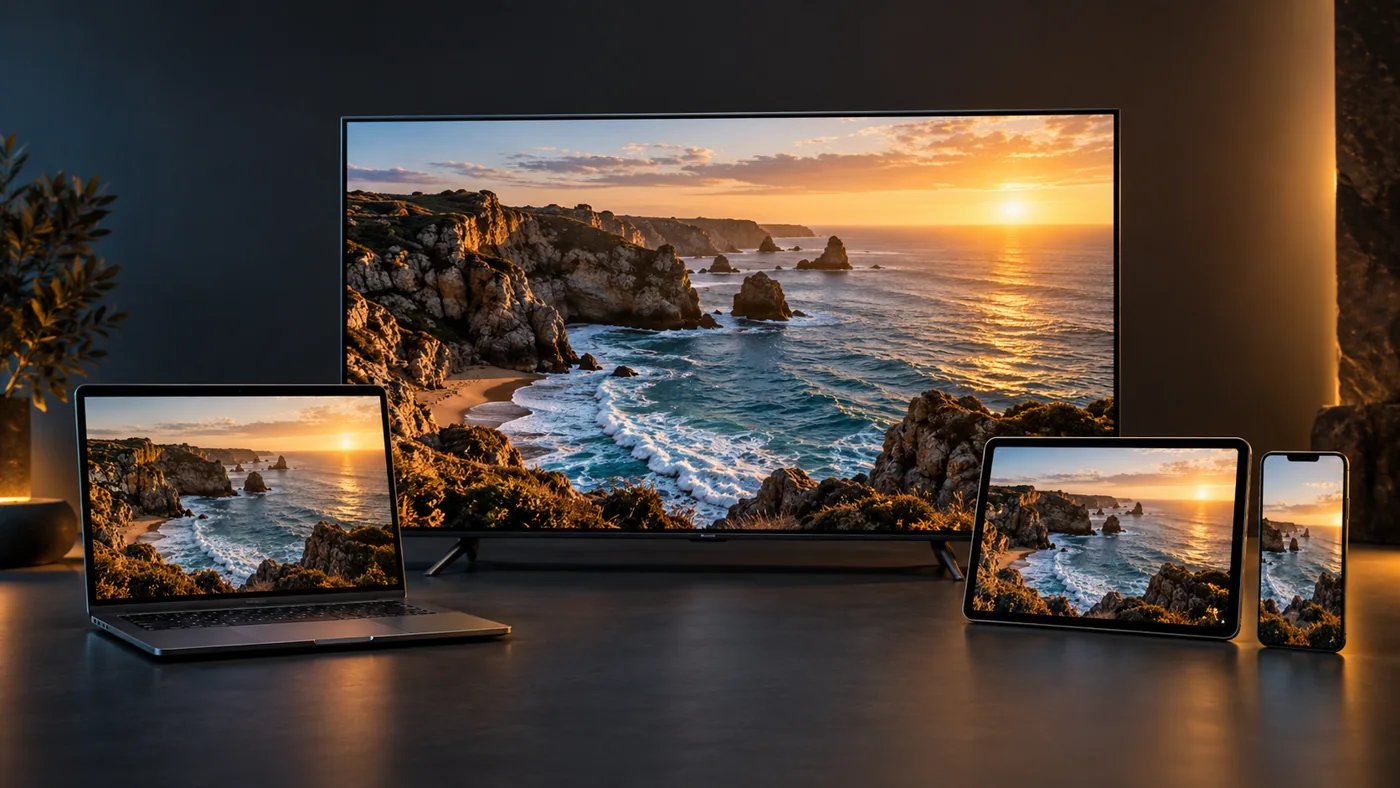
Test the connection on your streaming device, reduce competing traffic and keep an HD option ready.
Live sport punishes hesitation: the goal, the replay and the slow-motion angle all arrive in real time. This guide makes 4K sports streaming and IPTV buffering something you fix before kickoff, not during the second half.
Think in three layers
A smooth live sports stream depends on the source, the network and the player working together. A fast internet package alone cannot guarantee uninterrupted playback, and an app labelled “4K” cannot turn an HD broadcast into native UHD.
Think of the chain like a water pipe: the source decides how much can flow, the network decides how smoothly it arrives, and the screen decides how well it is shown. If any link is weak, the whole experience suffers — and the interesting part is that each layer fails differently. A poor source pixelates. A congested network buffers. A mismatched screen flickers, stutters or refuses a format entirely. Naming which failure you saw is already half the diagnosis.
When troubleshooting, compare one layer at a time. If every app struggles on the same television, investigate the network or device. If only one channel pauses, test another channel before changing your entire setup.
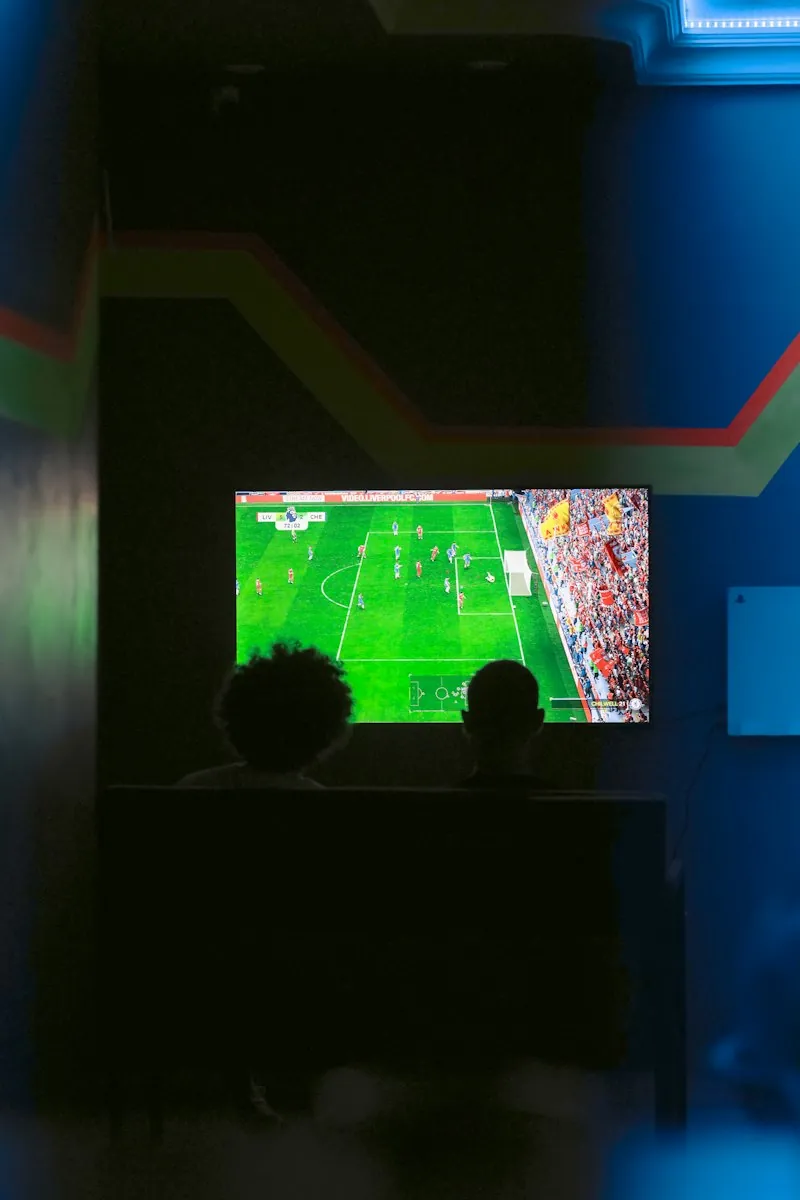
One phrase to be wary of is “4K quality” used loosely. Native 4K sport needs the broadcaster to capture, encode and distribute in UHD before your provider can relay it; anything less is upscaled from HD or 1080i and no player can invent detail that was never captured. That is not a reason to avoid the channel — upscaled sport often still looks superb — but it deserves a calm expectation, which prevents the classic mistaken upgrade: buying new hardware for a picture the source never offered.
A source hiccup, a mid-event renegotiation or a regional blackout sits outside your router and your remote. When the match-day dash fails, a calm message to support with the channel and time catches the provider-side problems that no new cable can cure.
Language options belong to this chapter too. A big international event often carries multiple commentary tracks, and the second track is frequently in a language with better pacing for your household. Test the audio switcher during a warm-up match, not during the final, because commentary audio can arrive in a different codec that some players mishandle. Our Smart TV setup guide notes where these settings hide on the most common televisions.
Measure where you watch
Run a speed test near the television, ideally on the streaming device itself. A phone beside the router may give a very different result. Check during the evening when other devices are active, and pause large downloads while testing.
For context, Netflix recommends a stable 15 Mbps or more for its 4K video. That is a Netflix-specific recommendation, not a guaranteed requirement for every IPTV stream. Bitrate, simultaneous streams and network congestion all matter. Leave headroom above the requirements supplied by your own service.
Use FAST.com to check download speed. If possible, compare Ethernet with Wi-Fi. A cable avoids Wi-Fi interference, but it cannot fix an overloaded source or a service outage. Follow our connection troubleshooting guide if results fluctuate.
Download speed is only half the story. Latency, jitter and congestion decide whether live sport stays glued to real time. A 100 Mbit plan that spikes and dips will buffer more than a steady 25 Mbit line.
Repeat the test three times at 20-minute intervals during the hour you normally watch. Erratic numbers point to Wi-Fi interference or a congested household network rather than your ISP — the classic culprits are a router tucked behind a television, a neighbour’s networked microwave on the same band and a housemate streaming in 4K upstairs. Move the router into open space, prefer the 5 GHz band, or run Ethernet to the streaming device. The connection guide walks through each fix in order.
If the household is genuinely crowded, consider giving the streaming box its own path. A separate band for the TV or a quality-of-service rule that prioritises the box in the router’s settings can rescue a family home where four screens fight for one uplink at 8pm. Trial the setting for a week before declaring victory — router menus advertise grand promises and deliver unevenly, so the scoreboard that matters is the weekend match, not the diagnostics page.
A second, independent speed test is worth keeping in the toolbox. Speedtest by Ookla runs from your browser or phone and gives a second opinion when FAST.com and the router disagree — a common early symptom of a weak Wi-Fi link or a flaky ISP gateway. Numbers that differ wildly between two testers point at the path between your devices rather than your subscription, which changes the phone call you make to support.

Tune for the action
Check that the television, playback device and selected stream support the output you want. Resolution describes image detail; frame rate affects how motion looks. An available HD sports feed with smooth motion may be a better choice than a 4K feed that repeatedly stops.

Frame rate is the underrated spec in sports. Football, basketball and motorsport all produce fast horizontal movement, and a 50 or 60 fps feed stays smooth where a 30 fps feed judders across the screen. Many players hide this setting under “frame rate matching” or “refresh rate”. If the ball glides rather than blurs, the player is matching the sport’s native cadence — leave that setting alone once it works.
Update the player through its official store. If it offers a buffer setting, adjust it gradually: a larger buffer may absorb brief interruptions but can add delay to live viewing. Avoid changing decoding, network and buffer settings together. Use our IPTV app guide to compare your options.
Codecs quietly decide which devices can even attempt high-quality sport. HEVC (H.265) is the workhorse of 4K-and-beyond streaming, while AV1 is increasingly used for efficiency, and older players that only decode H.264 will struggle or fall back to lower quality. When a specific channel “works on the phone but not the TV,” a codec mismatch is often the reason — checking the player’s decoder support and updating the box is cheaper than assuming the network is at fault.
Save both the preferred channel and an available lower-resolution version to favourites. Switch if needed, then investigate the cause after the event.
Picture modes deserve ten seconds of attention. Modern televisions default to vivid presets that inflate motion smoothing; for sport many viewers prefer “sports” or “movie” modes with smoothing reduced and the sharpness at a sane level. The best review resource for your exact model is RTINGS’ television reviews, which test input lag and motion handling panel by panel. Whatever preset you pick, verify it per input — most TVs remember settings separately for each HDMI port.
Your pre-kickoff checklist
Use this checklist before the match. It stays on this page for the current visit, so you can work through the setup without opening another app.
0 of 5 checks complete
The best time to run these checks is thirty minutes before the broadcast, not ninety seconds before kickoff. Filters fail slowly, streams renegotiate and firmware quietly updates overnight — a channel that played perfectly last Saturday can demand a fresh login this week. Give the stack five minutes to settle before the anthem starts.
Go one useful step further and make the checklist a habit for every big event: it takes six minutes and ends with the channel already playing, the buffer warm and the commentary correct. Twenty matches later the routine disappears, which is exactly the point. The ritual belongs to the ten minutes before sport, the same way checking the football boots belongs to the ten minutes before the whistle — unglamorous, and quietly decisive.
Still seeing pauses? Use our buffering fixes and freezing troubleshooting steps, or contact support with the device model, app name, channel and approximate time. These details help narrow the issue without guessing.
Match-day FAQ
Short answers for the moments decisions get made quickly.
Start with a steady 20–25 Mbps on the viewing device and add headroom for other screens. Speed matters less than stability; a consistent line beats a fast one with evening congestion.
For live sport, usually yes. Ethernet removes interference, latency spikes and band contention. It cannot fix a bad source or an ISP outage, but it eliminates the most common household variable.
Classic congestion signature: the buffer covers the first seconds, then real-time delivery arrives faster than the line can carry. Reduce competing traffic or upgrade the network path rather than blaming the app.
If 4K stutters mid-match, yes — switch to HD, enjoy the event, then diagnose later. A reliable feed during live sport is worth more than extra pixels you cannot actually see through a buffer spinner.
Device model, app name and version, the exact channel, the referee’s time of the failure and whether other channels played. Specifics convert a vague “it buffered” into a fixable diagnosis.
Every active screen draws its own bitrate. Two 4K streams plus a laptop video call can overwhelm a mid-tier plan, so price your internet tier for the whole household on match night.
Usually a resolution or HDCP negotiation, not a network problem. Try a lower resolution, a different HDMI port or a fresh cable first — and test whether the channel plays in the phone app to rule out the source.
As a last resort for buffering, turning off Wi-Fi and using a strong mobile connection can save the second half. Treat it as a plan, not a strategy — caps and congestion make it unreliable for a whole season.
Gear that earns its place
Buy nodes, not hype. Each piece of equipment below solves one specific problem in the three-layer chain; skip any item whose problem you do not have.
Quick verdict
Ethernet
A 10-metre cable beats a hundred pounds of “gaming router” if the TV sits near the router. Hardwire the streaming device first.
Streaming box
A wired-capable box with a recent codec stack outperforms a five-year-old TV’s built-in apps for high-bitrate channels.
AV receiver
Only needed for surround sound. A receiver in the loop also simplifies HDMI switching for sport setup and movie nights.
Test gear the way you test the service: one change at a time against the same channel. New router first, box second, cable third. If the goal replays without a pause for two Saturday matches, the setup is settled — and if it is not, you know exactly which link is still weak because you never changed two links at once. Our device comparison and TiviMate walkthrough cover the box step in more depth.
Buy a box when your television’s built-in player cannot decode the codec, the app is missing from its store, or the Wi-Fi chip is older than the stream. Otherwise leave the money in your pocket — a fresh cable and a quiet network usually do more.
Second-screen culture changes the setup too. Many viewers follow a second device for stats, replays and reaction during a match, which means the living-room stream suddenly shares the household with a tablet. Account for that extra screen when pricing the plan and when testing: a simultaneous-connection limit in the small print is precisely the kind of thing that surfaces at half-time. Our subscription overview lists what to ask about connections and devices before you commit.
HDR, motion & eye candy
Once the stream is stable, picture quality turns into a separate conversation. HDR (high dynamic range) and resolution are different things: resolution decides detail, while HDR decides the range between the brightest floodlight and the deepest corner shadow. A UHD channel does not automatically mean HDR, and a carefully graded HD picture with HDR can look richer than a dull 4K relay.
On the television, look for a setting named HDR10, HLG or Dolby Vision when a compatible stream is playing. Sport is increasingly broadcast with HLG because it was designed for live production, so if your box supports the format the stadium lights finally look like light instead of white noise. If the image looks washed out, the usual causes are an incompatible player setting or an HDMI input negotiating a lower dynamic range — switch cables or ports before touching the wrong settings menu.
Resolution
Detail — how much information the source captured. The benefit grows with the screen size.
Frame rate
Motion — how smoothly the ball travels. 50/60 fps beats 30 fps for live sport almost every time.
HDR
Contrast — the range from shadow to floodlight. Check HLG, HDR10 or Dolby Vision support.
The television’s game mode deserves a mention. Game modes cut input lag, which matters on a shared console setup, but they sometimes flatten picture processing. Many viewers prefer the sports or cinema preset for sport and manage input lag detail per manufacturer. RTINGS tests input lag panel by panel if you want the specific trade-off for your screen.
One more trap: motion smoothing. Television “motion plus” features that interpolate frames can make live sport look like a daytime soap opera and can add perceptible delay between the broadcast and your eyes. If the pitch suddenly feels too smooth to be real, disable interpolation and judge whether the game feels like a pitch again. Motion is the last setting to touch because it is the easiest to leave worse than you found it.