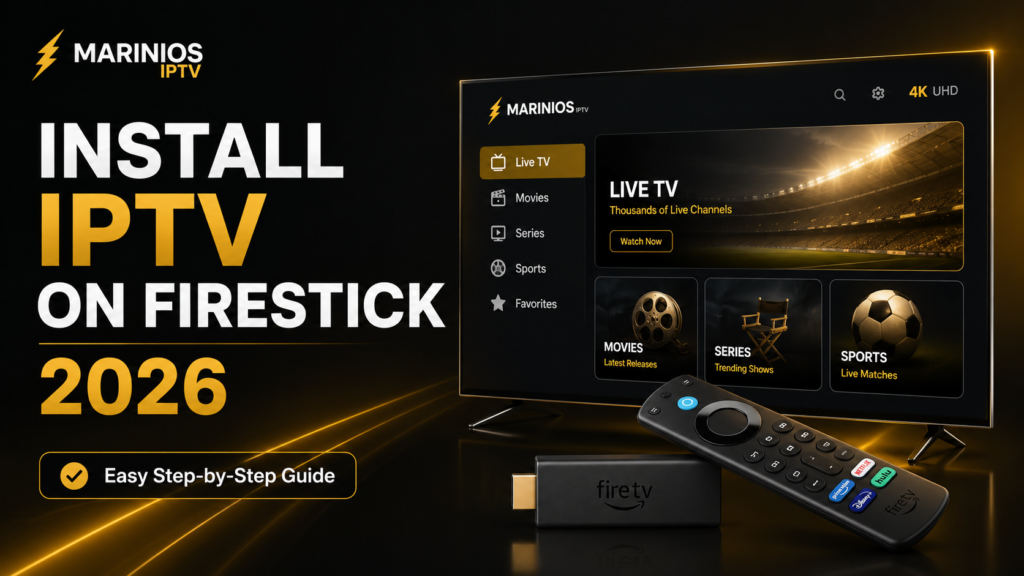
Marinios IPTV on Firestick is easy to install in 2026. In this guide, you will learn how to set up Marinios IPTV on Firestick step by step using an IPTV player app and your login details.
Installing Marinios IPTV on Firestick is simple and only takes a few minutes. Firestick is one of the most popular devices for IPTV because it is easy to use, affordable, and works well with many IPTV player apps.
In this guide, we will show you how to set up Marinios IPTV on Firestick step by step.
What You Need Before Starting
Before installing Marinios IPTV, make sure you have:
- A Firestick or Fire TV device
- A stable internet connection
- An active Marinios IPTV subscription
- Your IPTV login details
- An IPTV player app
For a smooth streaming experience, we recommend using a strong Wi-Fi connection.
Step 1: Turn On Your Firestick
Connect your Firestick to your TV and make sure it is connected to the internet.
From the home screen, go to:
Settings → Network
Choose your Wi-Fi network and connect.
Step 2: Install an IPTV Player App
To watch Marinios IPTV on Firestick, you need an IPTV player application.
Popular IPTV player apps include:
- IPTV Smarters
- TiviMate
- XCIPTV Player
- Smart IPTV
Open the app store on your Firestick, search for your preferred IPTV player, and install it.
Step 3: Open the IPTV App
After installing the IPTV app, open it from your Firestick apps section.
You will usually see options like:
- Login with Xtream Codes
- Load M3U URL
- Add Playlist
Choose the login method provided with your Marinios IPTV subscription.
Step 4: Enter Your Marinios IPTV Details
Enter your IPTV login information carefully.
This may include:
- Username
- Password
- Server URL
After entering the details, click Login or Add User.
Step 5: Wait for Channels to Load
The app will start loading your IPTV content.
This can include:
- Live TV channels
- Movies
- Series
- Sports channels
- International channels
Wait a few moments until everything loads completely.
Step 6: Start Watching Marinios IPTV
Once the content is loaded, you can start watching your favorite channels and videos directly on your Firestick.
You can browse by category, search for channels, or add favorites depending on the IPTV app you use.
Tips for Better Streaming
For the best Marinios IPTV experience on Firestick:
- Use a strong internet connection
- Restart your Firestick sometimes
- Keep your IPTV app updated
- Clear app cache if the app becomes slow
- Use 5GHz Wi-Fi if available

Final Thoughts
Marinios IPTV is easy to install on Firestick when you use the right IPTV player app. After setup, you can enjoy live TV, movies, sports, and series directly from your TV.
Firestick is a great choice for IPTV because it is simple, fast, and works with many popular IPTV apps.
Best IPTV Apps to Use with Marinios IPTV on Firestick
You can use different IPTV player apps with Marinios IPTV on Firestick. Popular options include IPTV Smarters, TiviMate, XCIPTV Player, and other compatible IPTV apps. Choose the app that is easiest for you to use and make sure your login details are entered correctly.
How to Fix Marinios IPTV Not Working on Firestick
If Marinios IPTV does not load correctly, first check your internet connection. You can also restart your Firestick, clear the IPTV app cache, or reinstall the IPTV player app. Make sure your username, password, and server URL are written correctly.
How to Improve Streaming Quality
For better streaming quality, use a strong Wi-Fi connection and keep your Firestick close to your router. If possible, use a 5GHz Wi-Fi network. You should also close background apps and clear cache from time to time to keep the device running smoothly.
Ready to Get Started?
Join thousands of satisfied customers enjoying premium IPTV service.