Installing Marinios IPTV on Android TV in 2026 is one of the easiest ways to enjoy live TV, sports, movies, and series directly on your big screen. Whether you use a Sony Android TV, TCL Android TV, Xiaomi Mi Box, Nvidia Shield, Chromecast with Google TV, or another Android TV device, you can set up Marinios IPTV in just a few simple steps.
In this guide, you will learn how to install Marinios IPTV on Android TV using popular IPTV player apps like IPTV Smarters, TiviMate, and VLC Player. You will also learn how to fix common setup problems, improve streaming quality, and choose the best app for your device.
Before starting, make sure you already have an active Marinios IPTV subscription. If you do not have one yet, you can check our Marinios IPTV Subscription Plans or contact us through Marinios IPTV Support.
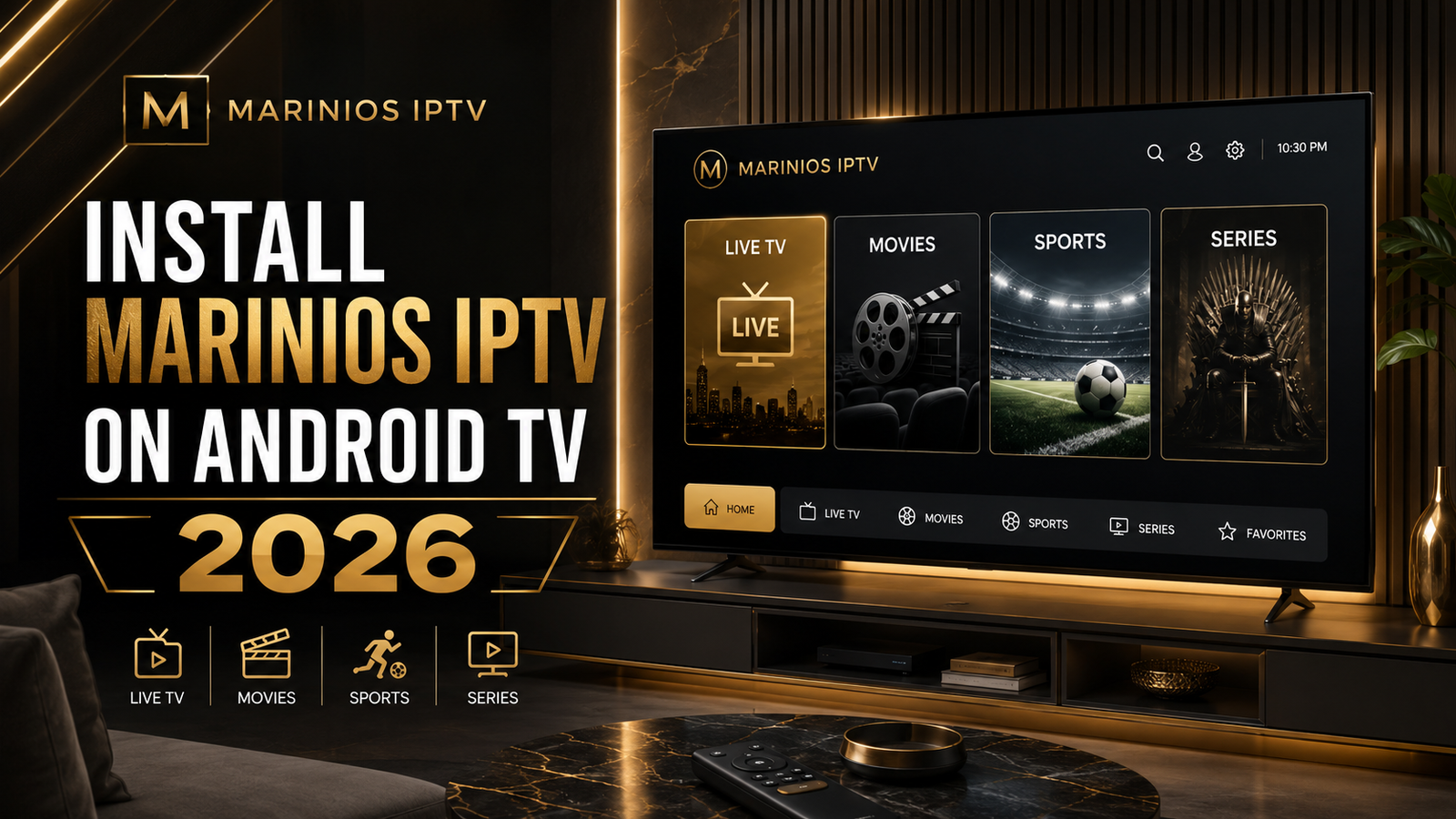
What You Need Before Installing Marinios IPTV on Android TV
Before you begin the installation, prepare these basic things:
- An Android TV or Google TV device
- A stable internet connection
- A Google account connected to your TV
- Your Marinios IPTV login details
- An IPTV player app such as IPTV Smarters, TiviMate, or VLC
- Your M3U playlist link or Xtream Codes login details
Most Android TV devices allow you to download compatible apps directly from the Google Play Store. Google also explains that apps and digital content are linked to your Google account, so you can use them on compatible devices connected to that account.
Best Apps to Use Marinios IPTV on Android TV
There are several apps you can use to watch Marinios IPTV on Android TV. The best option depends on your device and how you prefer to watch IPTV.
1. TiviMate IPTV Player
TiviMate is one of the best IPTV players for Android TV because it is designed for big screens and remote-control navigation. It works smoothly with playlists and offers a clean TV-style interface. The official TiviMate website describes it as a media player where users add their own playlists to watch live TV, movies, and shows.
You can download it from the TiviMate app page on Google Play.
2. IPTV Smarters / Smarters Player
IPTV Smarters and similar Smarters-style players are popular because they are simple to use and support playlist-based IPTV streaming. Some versions on Google Play describe support for IPTV playlist management, channel navigation, and user-provided IPTV content sources.
You can search for IPTV Smarters or Smarters Player directly inside the Google Play Store on your Android TV.
3. VLC for Android
VLC for Android is a free and open-source media player. It can play video files, audio files, network streams, and many streaming protocols, which makes it useful for opening some IPTV playlist links.
You can download it from the VLC for Android page on Google Play.
For the best IPTV experience, we recommend starting with TiviMate or IPTV Smarters because they are easier to use for live TV channels, movies, series, and EPG-style navigation.
Method 1: Install Marinios IPTV on Android TV Using TiviMate
TiviMate is a strong choice if you want a clean and premium IPTV layout on Android TV.
Step 1: Open Google Play Store
Turn on your Android TV and open the Google Play Store. Make sure your TV is connected to the internet and signed in with a Google account.
Step 2: Search for TiviMate IPTV Player
Use the search bar and type TiviMate IPTV Player. Select the official app and click Install.
Step 3: Open TiviMate
After installation, open the app from your Android TV home screen.
Step 4: Add Your Marinios IPTV Playlist
Choose Add Playlist. Then select the playlist method provided by Marinios IPTV.
You may receive either:
- M3U playlist URL
- Xtream Codes login
- Portal URL, depending on your setup
Enter the details carefully. If you make a mistake in one letter, number, or symbol, the playlist may not load correctly.
Step 5: Wait for Channels to Load
After entering your Marinios IPTV details, wait for TiviMate to load your channels, movies, series, and TV guide if available.
Step 6: Start Watching
Once the playlist is loaded, you can start watching your favorite live TV channels, sports, movies, and series on Android TV.
For more help with setup, you can also visit our Marinios IPTV Installation Guide.
Method 2: Install Marinios IPTV on Android TV Using IPTV Smarters
IPTV Smarters is another simple way to use Marinios IPTV on Android TV, especially for beginners.
Step 1: Open Google Play Store
From your Android TV home screen, open the Google Play Store.
Step 2: Search for IPTV Smarters
Search for IPTV Smarters, Smarters Player, or another compatible IPTV player available in your region.
Step 3: Install the App
Choose the IPTV player app and click Install.
Step 4: Open the App
Once installed, open the app. You may see options such as:
- Load Your Playlist or File/URL
- Login with Xtream Codes API
- Play Single Stream
Step 5: Enter Your Marinios IPTV Details
If Marinios IPTV gives you Xtream Codes details, enter:
- Username
- Password
- Server URL
If you receive an M3U link, choose the playlist URL option and paste your M3U link.
Step 6: Save and Load Content
Click Add User, Save, or Login, depending on the app. The app should start loading your Marinios IPTV channels, movies, and series.
Step 7: Enjoy Marinios IPTV on Android TV
After the playlist loads, you can browse live TV, sports, movies, series, and other available categories.
If you need help choosing the best player, check our guide: Best IPTV Apps for Marinios IPTV.
Method 3: Install Marinios IPTV on Android TV Using VLC Player
VLC is not the most advanced IPTV app, but it is useful if you want a simple way to test an M3U playlist.
Step 1: Install VLC for Android
Open Google Play Store on your Android TV and search for VLC for Android.
Install the app from VideoLAN.
Step 2: Open VLC
Launch VLC from your Android TV apps menu.
Step 3: Open Network Stream
Go to More or Network Stream, depending on your VLC version.
Step 4: Enter Your M3U Link
Paste your Marinios IPTV M3U playlist link and start the stream.
Step 5: Start Watching
VLC should begin playing the playlist or stream. However, for better IPTV browsing, channel categories, and TV guide features, TiviMate or IPTV Smarters may be better.
How to Improve Marinios IPTV Streaming Quality on Android TV
After installing Marinios IPTV on Android TV, use these tips to get smoother streaming.
Use a Strong Internet Connection
For stable IPTV streaming, use a fast and reliable internet connection. If possible, connect your Android TV using an Ethernet cable instead of Wi-Fi. This can reduce buffering and improve stability.
Restart Your Android TV
If the app becomes slow or channels stop loading, restart your Android TV. A simple restart can clear temporary problems and refresh the connection.
Clear App Cache
If your IPTV player becomes slow, go to:
Settings > Apps > Your IPTV App > Clear Cache
This can help fix freezing, slow loading, or app performance issues.
For more solutions, read our full guide: How to Fix Marinios IPTV Buffering Problems.
Choose the Right Player
If one IPTV player does not work well, try another one. Some Android TV devices perform better with TiviMate, while others work better with IPTV Smarters or VLC.
Update Your App
Keep your IPTV player updated from the Google Play Store. App updates can improve performance, fix bugs, and support newer Android TV versions.
Common Problems When Installing Marinios IPTV on Android TV
Problem 1: App Not Found in Google Play Store
Some IPTV apps may not appear in every region or on every Android TV model. If an app is not available, try another player such as TiviMate, VLC, or another compatible IPTV player.
Problem 2: Playlist Not Loading
This usually happens when the login details are incorrect. Check your username, password, server URL, or M3U link. Make sure there are no extra spaces.
Problem 3: Channels Buffering
Buffering can happen because of weak Wi-Fi, slow internet, overloaded device memory, or incorrect player settings. Try restarting your router, using Ethernet, clearing cache, or switching to another player.
Problem 4: App Crashing
If the app crashes, clear the app cache, update the app, restart your Android TV, or reinstall the IPTV player.
Problem 5: No Sound or Black Screen
Try changing the media player settings inside the IPTV app. Some apps let you switch between built-in player, external player, or VLC player.
Is Marinios IPTV Compatible With All Android TV Devices?
Marinios IPTV can work on many Android TV and Google TV devices as long as your device supports IPTV player apps. This includes:
- Sony Android TV
- TCL Android TV
- Xiaomi Mi Box
- Nvidia Shield TV
- Chromecast with Google TV
- Android TV Box
- Philips Android TV
- Hisense Android TV, depending on the model
If your device has Google Play Store and supports IPTV apps, you should be able to install a compatible player and use your Marinios IPTV subscription.
You can also explore our guide: Best Devices to Watch Marinios IPTV in 2026.
Safety Tips Before Installing IPTV Apps
To keep your Android TV safe, install apps from trusted sources whenever possible. Google Play is the easiest way to install compatible Android TV apps, and some TV brands also mention that a Google account and internet connection are required to download apps on Google TV or Android TV devices.
Avoid downloading unknown APK files from random websites. These files can cause security problems, app errors, or poor performance.
Also, make sure you only use IPTV services and content that you are legally allowed to access in your country.
Best App for Marinios IPTV on Android TV in 2026
For most users, the best app for Marinios IPTV on Android TV is TiviMate because it is smooth, modern, and designed for Android TV screens.
For beginners, IPTV Smarters is also a good option because it is simple and easy to understand.
For testing M3U links, VLC Player is useful, but it does not offer the same premium IPTV experience as TiviMate or IPTV Smarters.
Final Thoughts
Installing Marinios IPTV on Android TV in 2026 is simple when you use the right IPTV player. The easiest method is to install TiviMate or IPTV Smarters from the Google Play Store, enter your Marinios IPTV login details, and start watching live TV, sports, movies, and series on your Android TV.
If you want a smooth experience, use a stable internet connection, keep your app updated, clear cache when needed, and choose the IPTV player that works best with your device.
Ready to start watching? Visit our Marinios IPTV Subscription Plans or contact Marinios IPTV Support to get your setup details.
FAQ: Marinios IPTV on Android TV
Can I install Marinios IPTV directly on Android TV?
Yes. You can install an IPTV player app on Android TV, then add your Marinios IPTV login details or M3U playlist link.
What is the best app for Marinios IPTV on Android TV?
TiviMate is one of the best choices for Android TV because it is made for big screens and remote-control navigation. IPTV Smarters is also good for beginners.
Do I need a Google account to install IPTV apps on Android TV?
Yes, most Android TV devices need a Google account to download apps from the Google Play Store.
Can I use Marinios IPTV on Chromecast with Google TV?
Yes, if your Chromecast with Google TV supports IPTV player apps, you can install a compatible player and add your Marinios IPTV details.
Why is Marinios IPTV buffering on Android TV?
Buffering can happen because of weak Wi-Fi, slow internet, app cache problems, or incorrect player settings. Try using Ethernet, clearing app cache, restarting your router, or using another player.
Can I use VLC for Marinios IPTV?
Yes, VLC can open some M3U playlist links, but it is better for testing than for a full IPTV experience.
Is Marinios IPTV easy to install?
Yes. Most users can install it in a few minutes by downloading an IPTV player and entering their subscription details.
Ready to Get Started?
Join thousands of satisfied customers enjoying premium IPTV service.