A smooth IPTV experience depends on more than just having internet. Your speed, Wi-Fi quality, number of devices, and streaming resolution all affect performance.
In this guide, you will learn the best internet speed for SD, HD, Full HD, and 4K IPTV streaming, plus simple ways to reduce buffering and improve your Marinios IPTV experience.
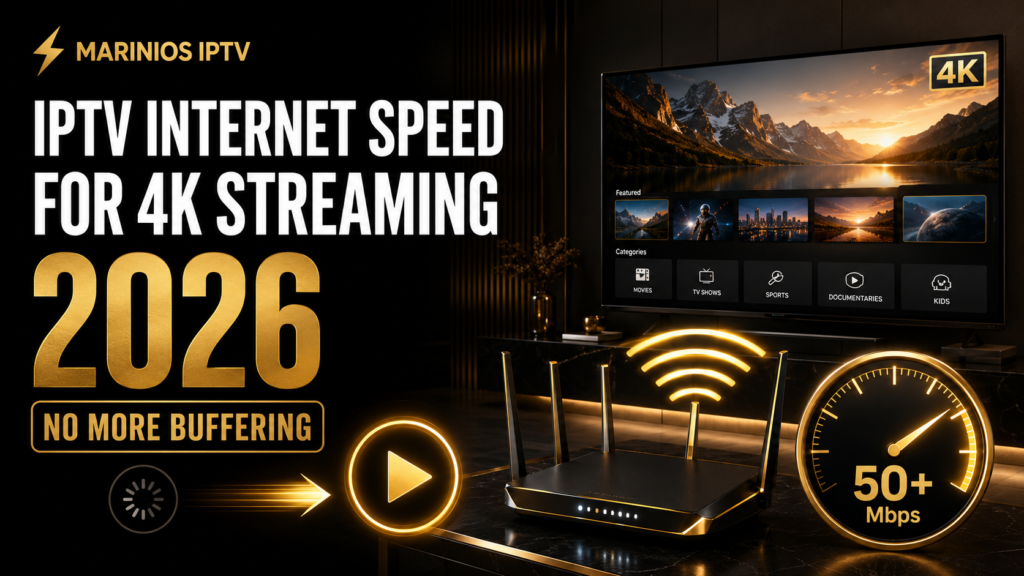
Quick IPTV Speed Recommendations
Use these practical targets for each active stream:
| Quality | Recommended Speed |
|---|---|
| SD | 5–10 Mbps |
| HD 720p | 10–15 Mbps |
| Full HD 1080p | 15–25 Mbps |
| 4K/UHD | 25–50 Mbps |
| Multiple 4K streams | 50–100+ Mbps |
These figures provide additional headroom for speed fluctuations, other connected devices and background downloads.
Official streaming services have slightly different minimums. Netflix recommends at least 15 Mbps for 4K, while Google and YouTube recommend approximately 20 Mbps. For consistent IPTV performance, allowing additional bandwidth is sensible. Netflix speed recommendations, Google 4K requirements
Why IPTV Needs a Stable Internet Connection
IPTV delivers video continuously through your internet connection. Your player temporarily stores a small portion of the video in a buffer before displaying it.
If data arrives slower than the video is playing, the buffer becomes empty. Playback may then:
- Pause
- Freeze
- Display a loading circle
- Drop to a lower resolution
- Lose synchronization between audio and video
- Close the stream completely
Connection stability is often more important than maximum speed. A stable 50 Mbps connection can perform better than an unstable connection that repeatedly changes between 20 and 200 Mbps.
Internet Speed Needed for SD IPTV
Standard-definition content uses the least bandwidth. A stable connection of approximately 5–10 Mbps per stream is normally sufficient.
SD can be helpful when:
- Your internet connection is limited.
- You are using mobile data.
- Several people share the network.
- Your device does not support higher resolutions.
- You are watching on a smaller screen.
The image will not be as sharp as HD, but playback may remain more stable on slower connections.
Internet Speed Needed for HD IPTV
HD 720p streaming generally needs around 10–15 Mbps of available speed per device.
Although some compressed streams may work with less, additional headroom protects against temporary Wi-Fi drops and background network activity.
For smoother HD playback:
- Use a modern router.
- Keep the streaming device near the router.
- Pause large downloads.
- Disconnect unused devices.
- Use Ethernet when possible.
Internet Speed Needed for Full HD IPTV
Full HD 1080p contains more visual information and usually requires approximately 15–25 Mbps per active stream.
You may need more speed for:
- High-frame-rate sports
- Streams with a higher video bitrate
- Multiple connected televisions
- Busy household networks
- Older routers with limited performance
A 50 Mbps connection can generally support one Full HD stream comfortably, provided the connection remains stable and other devices are not consuming most of the bandwidth.
Internet Speed Needed for 4K IPTV
For reliable 4K IPTV, aim for at least 25–50 Mbps of available speed for each active stream.
You also need:
- A television that supports 4K
- A 4K-compatible streaming device
- A compatible IPTV player
- Content genuinely available in 4K
- Suitable HDMI equipment when using an external device
- A stable network connection
Google recommends at least 20 Mbps for 4K on supported streaming equipment, while YouTube lists 20 Mbps as its recommended sustained speed. Because IPTV sources, compression and bitrates vary, maintaining 25–50 Mbps provides more practical headroom. YouTube system requirements
Internet speed does not convert HD content into 4K. The original content, player, streaming device and television must all support the higher resolution.
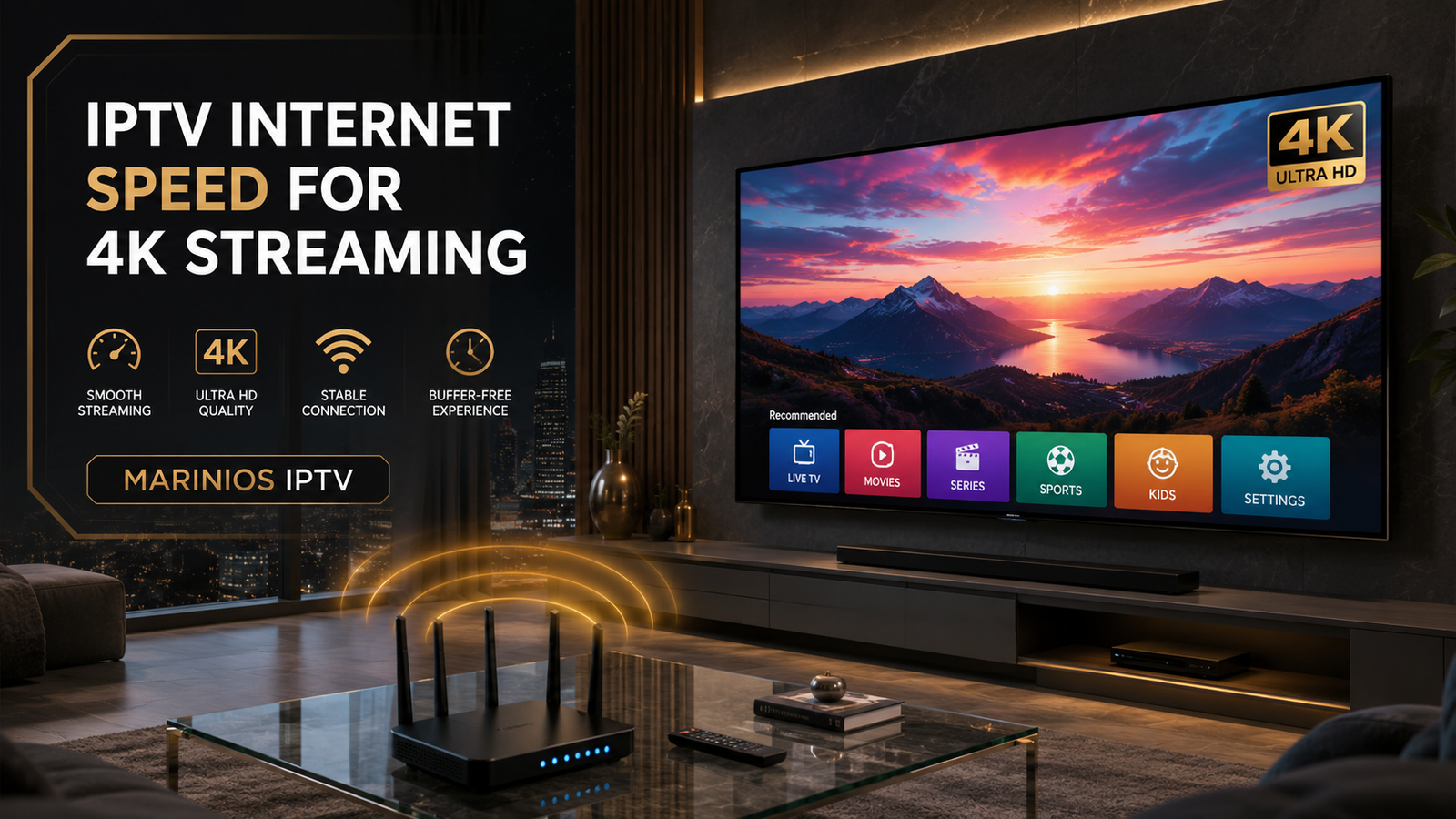
How Many Mbps Do Multiple Devices Need?
Add the estimated requirement for every simultaneous stream and include extra capacity for phones, computers and background activity.
Example 1: One HD television
- HD television: 15 Mbps
- Phones and general browsing: 10 Mbps
- Recommended internet plan: Approximately 30–50 Mbps
Example 2: Two Full HD televisions
- First stream: 20 Mbps
- Second stream: 20 Mbps
- Other devices: 15 Mbps
- Recommended plan: Approximately 60–100 Mbps
Example 3: Two 4K televisions
- First 4K stream: 35 Mbps
- Second 4K stream: 35 Mbps
- Other household devices: 20 Mbps
- Recommended plan: Approximately 100 Mbps or more
These are practical estimates rather than guaranteed requirements. Actual usage depends on the bitrate and compression of each stream.
Download Speed vs Upload Speed
Streaming primarily depends on download speed because your device receives video data from the internet.
Upload speed is more important for:
- Video calls
- Cloud backups
- Uploading files
- Live broadcasting
- Security cameras
- Online content creation
A very slow upload connection can still affect streaming when another device is uploading large files. Some routers allow heavy uploads to delay other network traffic.
For most IPTV viewers, download speed and stability should be the main priorities.
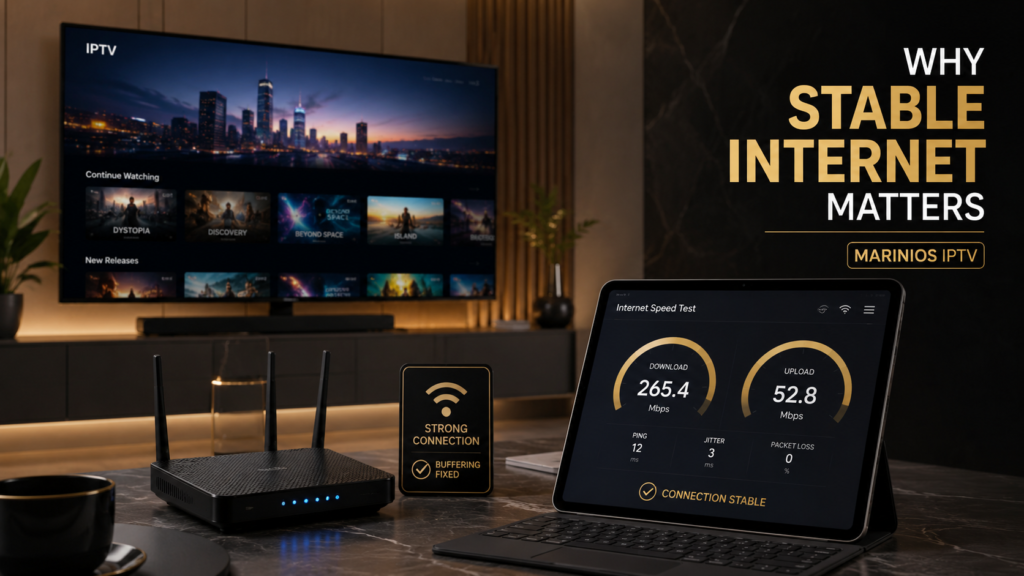
Why IPTV Buffers Despite Fast Internet
A high-speed package does not guarantee that the full advertised speed reaches your television or Firestick.
Weak Wi-Fi signal
Walls, furniture, distance and interference can reduce wireless performance.
Too many connected devices
Phones, consoles, computers and televisions compete for the same bandwidth.
Router limitations
An old router may struggle with multiple devices, even when your internet plan is fast.
Background downloads
System updates, cloud backups and game downloads can use substantial bandwidth.
Device performance
Limited storage, accumulated cache and insufficient memory can make an application appear to buffer.
Player settings
An unsuitable decoder or extremely large buffer may affect playback.
Network congestion
Your internet provider’s network may become slower during busy evening hours.
Stream-specific problems
If only one channel has problems while others work normally, your internet connection may not be the cause.
How to Test Your IPTV Internet Speed
Run the test as close as possible to the real streaming setup.
- Connect your television or streaming device to its normal network.
- Pause downloads and updates temporarily.
- Run a speed test.
- Record the download speed, upload speed and ping.
- Repeat the test several times.
- Test during the evening when you normally watch television.
- Compare Wi-Fi and Ethernet results.
Testing from a phone beside the router may not represent the speed reaching a television in another room.
Understanding Ping, Jitter and Packet Loss
Download speed is not the only measurement that affects IPTV.
Ping
Ping measures how long data takes to travel between your device and a server. Lower and more consistent ping is preferable.
Jitter
Jitter measures variations in connection delay. High jitter can create unstable playback even when your download speed appears adequate.
Packet loss
Packet loss occurs when some data fails to reach your device. It can cause freezing, visual corruption and audio problems.
A connection with moderate speed, low jitter and no packet loss is often better for streaming than a faster but unstable connection.
Ethernet vs Wi-Fi for IPTV
Ethernet generally provides the most consistent IPTV connection.
Benefits include:
- Less wireless interference
- More stable speed
- Lower latency
- Fewer sudden connection drops
- Better performance for high-bitrate content
Use a compatible Ethernet adapter when your streaming device has no built-in Ethernet port.
Wi-Fi can still perform well with a modern router and strong signal.
Should You Use 2.4 GHz or 5 GHz Wi-Fi?
Use 5 GHz when:
- The router is close to the television.
- There are few walls between the devices.
- You need higher speeds.
- Your streaming device supports 5 GHz.
Use 2.4 GHz when:
- The router is farther away.
- The signal must pass through several walls.
- Coverage is more important than maximum speed.
The 5 GHz band is usually faster but has a shorter effective range. Test both bands to determine which remains more stable in your home.
How to Improve IPTV Internet Performance
Restart your router
Disconnect it from power for approximately 30–60 seconds, reconnect it and wait for the network to become available.
Use Ethernet
Connect the streaming device directly to your router whenever practical.
Move the router
Place it in an open, central and elevated position. Avoid cabinets, thick walls and large metal objects.
Pause large downloads
Stop game downloads, cloud synchronization and software updates while testing IPTV.
Remove unused applications
Free storage and memory on your Smart TV, Firestick or Android TV device.
Clear the player’s cache
Accumulated temporary files can affect application performance.
Update your equipment
Install available updates for:
- Router firmware
- Smart TV software
- Fire OS or Android TV
- IPTV player
Consider a mesh network
A mesh Wi-Fi system can improve coverage in larger homes or buildings with thick walls.
Test a different player
A different compatible player or video decoder may handle the same stream more effectively.
Does a VPN Improve IPTV Speed?
A VPN does not automatically make IPTV faster. Encryption and the additional route between your device and VPN server can reduce speed.
If you use one:
- Choose a nearby server.
- Compare speed with and without the VPN.
- Select a modern protocol.
- Avoid overloaded free VPN services.
- Follow applicable laws and service terms.
If your connection performs better without the VPN, leave it disabled while streaming.
How Much Data Does 4K Streaming Use?
Data consumption varies by bitrate and compression. As an approximate example:
- SD: Around 0.7–1.5 GB per hour
- HD: Around 1.5–3 GB per hour
- Full HD: Around 3–7 GB per hour
- 4K: Around 7–16 GB per hour or more
Actual usage can be lower or higher. If your internet plan has a monthly data limit, monitor consumption through your router or provider’s application.
Quick Troubleshooting Checklist
If IPTV buffers, check these steps:
- Run a speed test near the streaming device.
- Restart the router and device.
- Test several different channels.
- Pause downloads on other devices.
- Clear the IPTV player’s cache.
- Switch between 2.4 GHz and 5 GHz.
- Test an Ethernet connection.
- Update the player and device.
- Try another compatible player.
- Contact support if every channel continues to fail.
For more solutions, link to your guide: How to Fix IPTV Buffering on Firestick in 2026.
Frequently Asked Questions
Is 20 Mbps enough for IPTV?
It may be enough for one HD or Full HD stream when the connection is stable. For 4K, 25–50 Mbps provides safer headroom.
Is 50 Mbps enough for 4K IPTV?
A stable 50 Mbps connection should generally provide enough capacity for one 4K stream and normal browsing. Multiple 4K streams may require more.
Is 100 Mbps enough for several devices?
For many homes, 100 Mbps can support multiple HD streams or approximately two 4K streams, depending on other network activity.
Why does IPTV buffer with 500 Mbps internet?
Possible causes include weak Wi-Fi, packet loss, router limitations, application cache, device performance or a problem affecting an individual stream.
Does Ethernet stop IPTV buffering?
Ethernet can resolve buffering caused by Wi-Fi instability. It cannot correct account, source-stream or device problems.
Do I need gigabit internet for IPTV?
Most households do not need gigabit service only for IPTV. A stable connection with sufficient capacity for every simultaneous stream is more important.
Final Thoughts
IPTV internet speed requirements vary according to resolution, bitrate, device count and network stability.
For one 4K stream, maintain approximately 25–50 Mbps of available speed. Consider a 100 Mbps or faster plan when several people stream, download or play online simultaneously.
Before upgrading your internet package, test Ethernet, improve Wi-Fi coverage and check your device. The problem may be connection quality rather than the maximum advertised speed.
Need Help With Marinios IPTV?
Need help testing your connection or optimizing Marinios IPTV for smoother streaming? Contact our support team for assistance with compatible players and device settings.
Only access channels and content you are legally authorized to watch.
Ready to Get Started?
Join thousands of satisfied customers enjoying premium IPTV service.